Feature
QR code table ordering for restaurants
KioSync gives every table its own QR code. Guests scan it, browse your menu and order from their own phone with no app to download, and the order goes straight to your kitchen display.
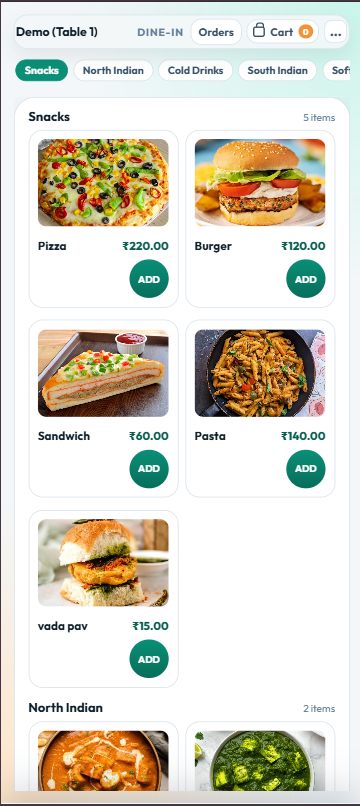
How QR table ordering works
Guests order in five steps on their own phone:
- The guest scans the QR code on the table. Your menu opens in the phone’s browser with your logo and welcome line, and there is no app to download.
- They browse the photo menu and pick sizes and add-ons, such as a large size or an extra topping.
- They enter a name and, if needed, a note for the kitchen, such as “extra spicy, no onion”.
- They pay online or choose to pay at the counter, depending on what you accept.
- They get an order number and a tracking page to check on the order.
Cash orders appear on the kitchen display straight away; online orders appear once they are paid.
A QR code for every table
Add your tables in the KioSync admin panel and each one gets its own QR code. Download one code at a time, or print every table at once on a single PDF sheet. You can set up to 200 tables per outlet.
Each code is tied to its table and to your restaurant. The link carries an encrypted, tamper-proof table code, so a link edited to another table or another restaurant is rejected. Read how KioSync keeps QR orders safe for the checks behind it.
Orders that stay correct
Whatever a guest’s phone shows, KioSync checks every order again on its server:
- Prices, GST, sizes and add-ons are recalculated from your menu, so a tampered cart can’t change the bill.
- Sold-out or hidden dishes are refused, even from an old screen.
- Double taps and network retries never create duplicate orders.
- The cart survives refreshes and network drops. While the phone is offline, ordering pauses with a clear message instead of failing silently.
- Ordering pauses on its own outside your opening hours, including hours that run past midnight.
Sold-out dishes and stock
Mark a dish sold out once and it is off QR, counter and captain ordering. Staff switch dishes off from the menu in the admin panel, and in the optional captain mode, captains can do it from the Availability view without menu-edit rights. If a guest’s screen still shows the dish, KioSync refuses it at checkout.
On the Pro plan, each order deducts ingredients from stock using your recipes, so you can see what you have used. Stock levels don’t mark dishes sold out by themselves, though: sold-out is always your switch, and guests can still order a dish whose recorded stock has run out until you switch it off.
Dine-in or takeaway
The guest chooses dine-in or takeaway when they order. Dine-in guests can also call a waiter for water, cutlery or the bill from the same page. A guest can cancel an order from their phone while it is still queued, before the kitchen starts on it.
What you need
- Your guests’ own phones. There is nothing to install and no proprietary hardware to buy.
- A screen for the kitchen display: a browser on a tablet, laptop or desktop, or the Android or Windows app.
- Optionally, a Windows PC with the KioSync Windows app and a LAN thermal printer, so KOTs print as soon as cash orders are placed and online orders are paid.
- An internet connection for the kitchen screen, and mobile data or Wi-Fi for guests. Ordering needs internet; KioSync doesn’t take orders offline.
For the full setup, from adding tables to printing codes, read how to set up QR ordering on your tables.
Frequently asked questions
Do guests need to download an app?
No. Guests don’t need an app to order with KioSync: the menu opens in their phone’s browser when they scan the table QR.
Can guests pay from their phone?
Yes, guests can pay from their phone when you turn on online payments through your own Razorpay, PayU or PhonePe account. They can also pay at the counter.
What if a dish sells out while someone is ordering?
If a dish sells out while someone is ordering, KioSync refuses it at checkout once it is marked sold out, even if the guest’s screen is out of date.
Can guests order takeaway?
Yes. Guests choose dine-in or takeaway when they order from the table QR.
What happens if a guest’s internet drops?
If a guest’s internet drops, the cart stays saved on their phone and ordering pauses until the connection is back, so nothing is lost.
Can someone order from outside the restaurant?
A printed QR keeps working, so in standard mode someone with a photo of it could order while you are open. Optional table sessions, which KioSync switches on for your restaurant on request, make a table’s QR work only after staff open the table, and pay-first mode (cash turned off) sends only paid orders to the kitchen.
Try KioSync free for 15 days
No card needed. We set up your trial with you: QR ordering, kitchen display and admin.